
Building My Own Virtualization Lab with Proxmox VE
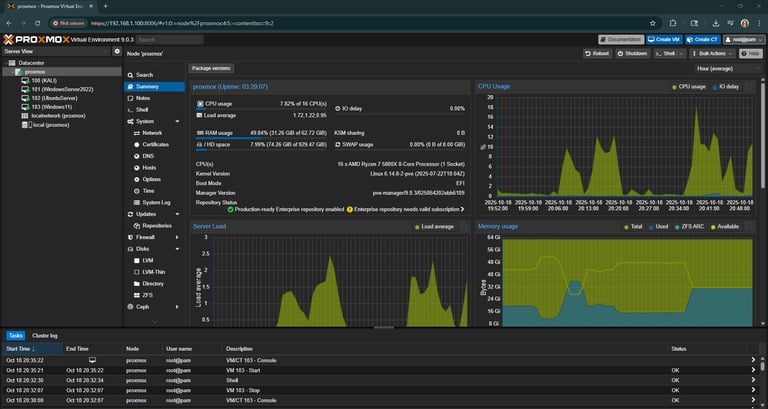
I set up a full virtualization environment using Proxmox VE on a custom-built Ryzen system. This project allowed me to simulate enterprise-level infrastructure from home — running multiple operating systems, testing Active Directory, experimenting with ethical hacking tools, and managing virtual networks. It became my personal lab for learning server administration, cybersecurity, and automation in a safe, isolated environment.
Chris Jedrasik
1 min read
Project Overview
I built a Proxmox VE virtualization lab on my secondary custom PC powered by a Ryzen 7 5800X, 64GB Corsair Vengeance DDR4, and a 1TB NVMe M.2 for Proxmox and VM storage. The M.2’s high read/write speeds make VM snapshots and migrations lightning-fast. A 500GB TeamGroup T-Force SSD serves as extra storage, and I installed an ASUS ROG Strix RTX 2070 for future GPU passthrough—so I can later experiment with AI/ML, 3D rendering, or CAD workloads.
Virtual Machines and Use Cases
Inside Proxmox, I set up several isolated VMs for different learning goals:
Ubuntu Server: for learning Linux administration, systemd, and network services.
Windows Server 2022: with the full GUI (Desktop Experience) to explore Active Directory, DNS/DHCP, and domain controller management.
Kali Linux: a safe environment to practice ethical hacking, penetration testing, and cybersecurity tools.
Windows 11 Pro: configured as a “resettable lab machine” that auto-restores to a clean snapshot after reboot, similar to a college computer lab setup.
Key Skills Learned
Through this project, I developed hands-on experience with:
Virtualization concepts – hypervisors, networking bridges, and VM provisioning.
Storage management – understanding SSD vs NVMe performance and how it impacts VM I/O.
Active Directory – creating users, managing group policies, and setting up domain services.
Network segmentation – isolating VMs for security and testing safe network exposure.
Automation – using shell scripting and PowerShell to streamline backups and restores.
Security awareness – maintaining sandboxed environments for safe experimentation.
GPU passthrough fundamentals – learning IOMMU grouping, driver binding, and PCIe passthrough setup.
Takeaways
This project turned into my personal home lab — a space to experiment, break things, and fix them. I gained confidence in managing virtual environments, troubleshooting system errors, and understanding real-world IT infrastructure concepts without relying on cloud costs or risking production data.
I now use this setup as a sandbox for ongoing learning, from scripting automation to testing new technologies like Docker, Kubernetes, and self-hosted services.
© 2025 Christopher Jedrasik. All rights reserved.
Directory
Let's Connect!
Built with curiosity and user experience in mind.