
How to Connect to Wi-Fi (and Fix It When It Won’t Connect)
Estimated time: 5–10 minutes Audience: Non-technical users
Chris Jedrasik
3 min read
Step 1: Make Sure Everything’s Ready
Before diving in, check these quick things:
Your Wi-Fi router (the little box from your internet provider) is plugged in and has lights on.
You know the Wi-Fi name (also called “Network Name” or “SSID”) and password.
You’re close enough to the router — thick walls or long distance can weaken the signal.
💡Tip: The Wi-Fi name and password are usually printed on a sticker on the router or included in your internet paperwork.
Step 2: Connect to Wi-Fi
Here’s how to do it depending on your device.
Windows Laptop or PC
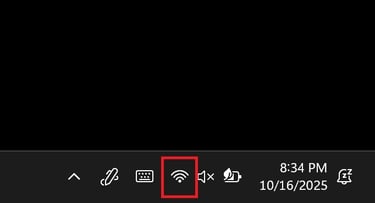
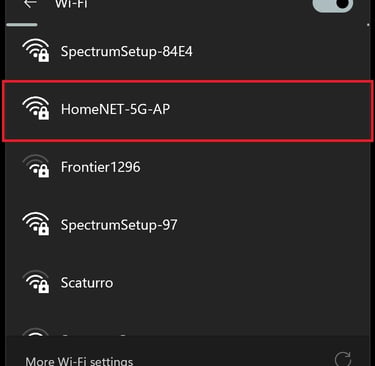
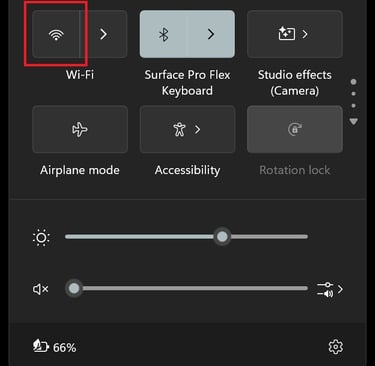
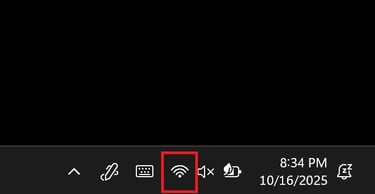
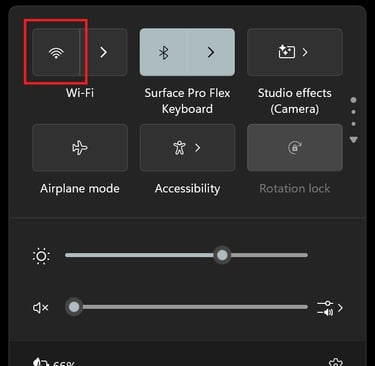
Click the little Wi-Fi icon at the bottom-right of your screen.
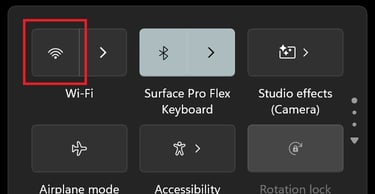
Make sure Wi-Fi is turned ON.
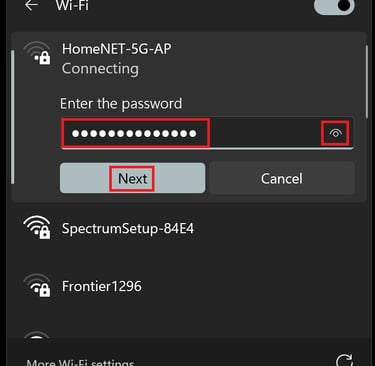
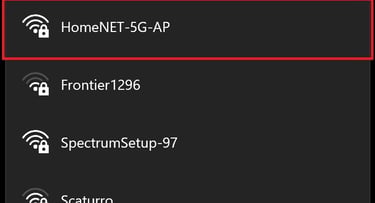
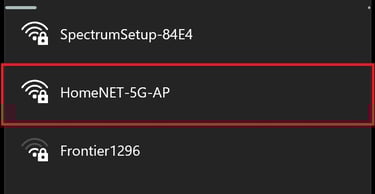
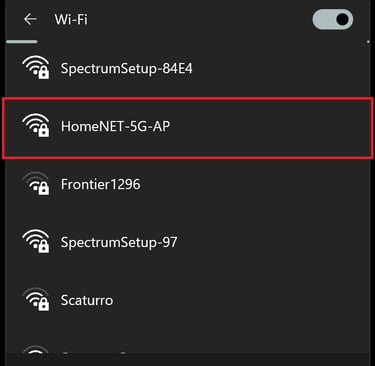
Click your Wi-Fi name.
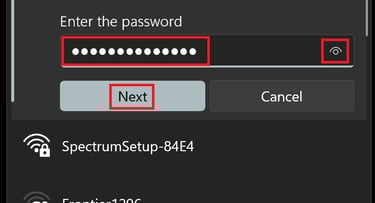
Type in the password (it’s case-sensitive — that means capital letters must match exactly).
Click Connect and you're done!
MacBook / iMac
Click the Wi-Fi symbol at the top-right of your screen.
Choose Turn Wi-Fi On (if it isn’t already).
Select your Wi-Fi name.
Type in the password.
Click Join.
iPhone / iPad
Open the Settings app.
Tap Wi-Fi.
Make sure Wi-Fi is switched On.
Tap your Wi-Fi name.
Enter the password, then tap Join.
Android Phone or Tablet
Open Settings → Network or Connections → Wi-Fi.
Turn Wi-Fi On.
Tap your Wi-Fi name.
Enter the password, then tap Connect.
Step 3: If It Still Won’t Connect
Take a deep breath — most Wi-Fi problems are quick fixes.
Work through these steps one at a time:
Turn Wi-Fi off and back on.
This refreshes your connection.
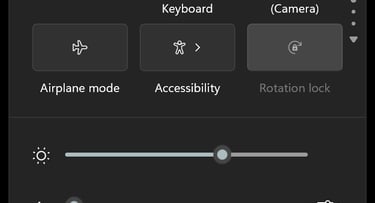
(Bonus: make sure “Airplane Mode” is off — that turns off Wi-Fi completely.)Restart everything.
Unplug your router for 30 seconds, then plug it back in.
Restart your phone, tablet, or computer.
This simple reset fixes more issues than anything else.
Forget the network and reconnect.
Go to your Wi-Fi settings.
Tap or click your network name and choose Forget.
Then reconnect and re-enter your password.
(This clears out old or wrong settings.)
Double-check your password.
Is “O” actually a zero? Is “l” a lowercase “L”?
Try typing it in a note first so you can see it clearly before pasting it in.
Test another device.
If your phone connects but your laptop won’t, it’s likely a problem with your laptop.
If nothing connects, the router or internet service may be the issue.Move closer to the router.
Wi-Fi weakens through walls and floors. Step closer and try again.When all else fails, contact your internet provider.
There could be an outage or a router issue on their end — nothing you did wrong.
Step 4: Keep It Working Smoothly
Restart your router occasionally — it keeps things running smoothly.
Write down your Wi-Fi name and password in a safe location.
Don’t share your password with people you don’t trust.
If you often lose connection in certain rooms, consider a Wi-Fi extender — it boosts the signal farther.
Quick Recap
Turn Wi-Fi on and connect to your network.
If it fails, restart your device and router.
Forget and reconnect.
Move closer.
Contact your internet provider if none of the above solutions work.
You Did It!
Perfect — you fixed it!
Your connection’s back because you took action, stayed patient, and solved it yourself. That’s how real tech confidence is built — one win at a time.
Keep this page bookmarked. Come back anytime you need a quick fix — you’ve already proven you can handle it.
© 2025 Christopher Jedrasik. All rights reserved.
Directory
Let's Connect!
Built with curiosity and user experience in mind.