
No Sound or Microphone in Zoom or Teams? Here’s How to Fix It Fast
Estimated time: 5–10 minutes Audience: Non-technical users
Chris Jedrasik
3 min read
1. Check Your Physical Connections
Make sure your headphones or microphone are fully plugged in (or connected via Bluetooth).
If using Bluetooth, confirm it says “Connected Voice and Audio.”
Unplug and reconnect your headset — Windows sometimes detects it only after you reinsert it.
💡 Tip: If your monitor has built-in speakers, Windows may default to that instead of your headset.
Step 2: Tell Zoom or Teams What to Use for Sound
Even if your device is connected, Zoom or Teams might still be trying to use something else — like your monitor speakers or laptop mic. You need to pick the right one inside the app.
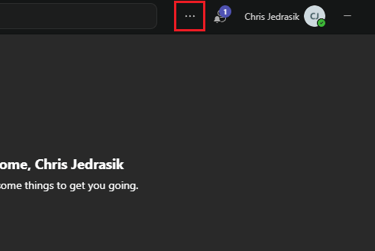
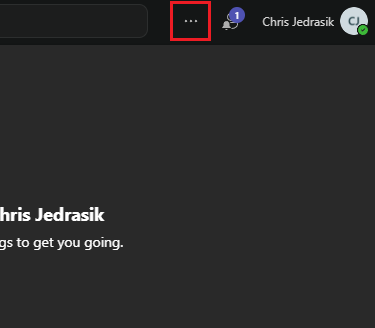
For Teams


For Zoom


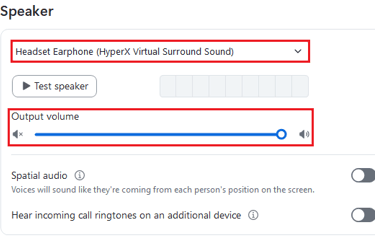

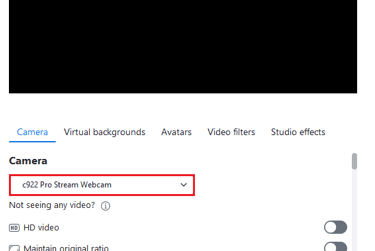

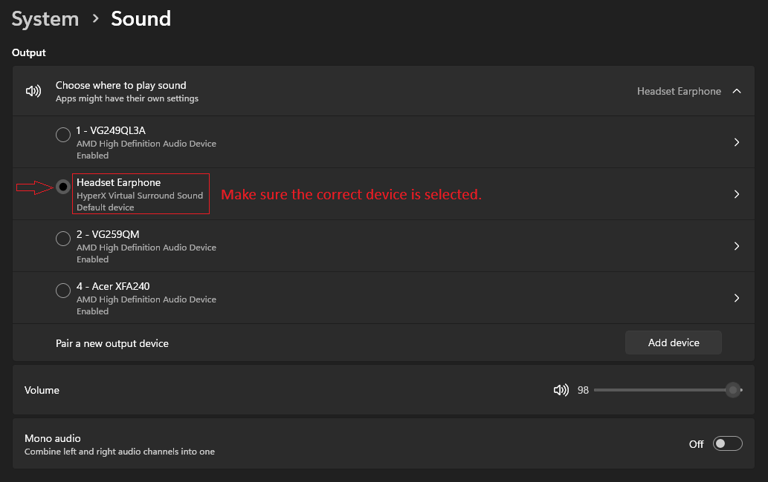
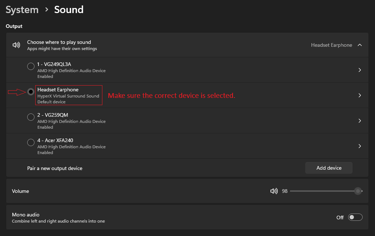
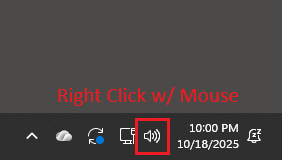
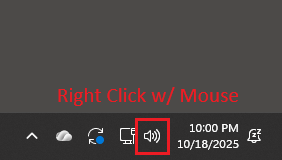
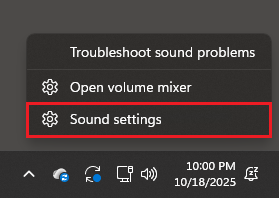
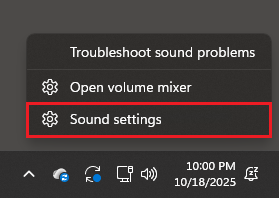
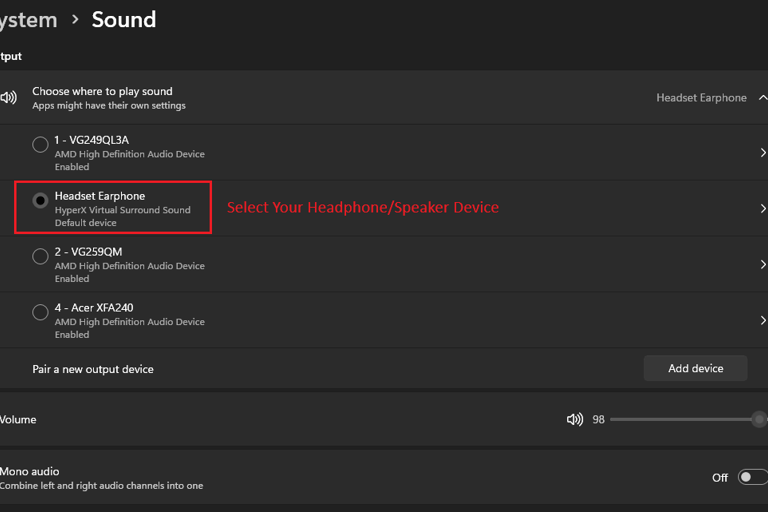
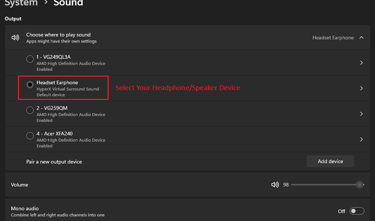
Step 3: Check if Your Computer Is Sending Sound to the Right Place
Sometimes the computer itself sends sound to the wrong speakers — or none at all. We’re going to tell it exactly where to send and listen.


Summary:
If you’ve checked your connections, selected the correct devices, and granted access, your microphone and sound should work again.
If not, try restarting your computer and re-opening Zoom or Teams — that fixes most of the rest.
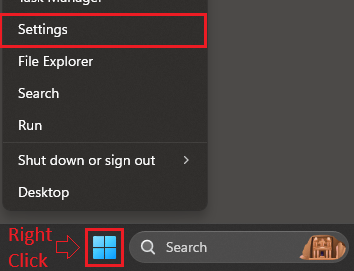



Right click the windows icon then click "Settings"
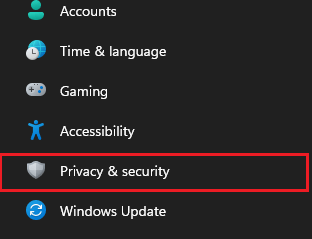
Click "Privacy & security"
Click "Microphone"
Toggle the switch to "ON" for your app (Zoom or Teams)
Step 4: Allow Your Computer to Use the Microphone
Even if everything’s plugged in right, Windows can block apps from using your microphone for privacy. We need to give it permission.
© 2025 Christopher Jedrasik. All rights reserved.
Directory
Let's Connect!
Built with curiosity and user experience in mind.